YOUR ROOM
iPAD USER GUIDE
Each cabin has it’s own iPad controller (located inside the bed side table) that facilitates single point control of home theatre equipment, music media, air conditioning, lighting, windows, curtains and blinds.
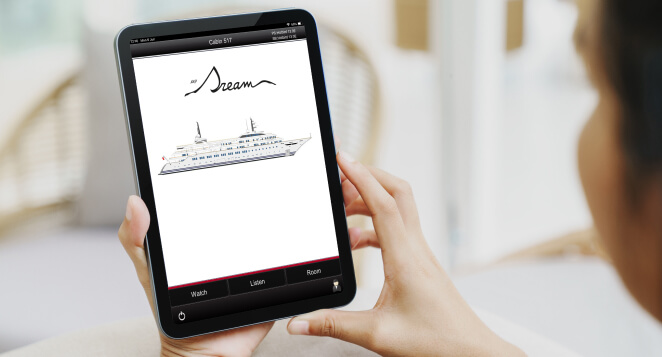
MAIN INTERFACE
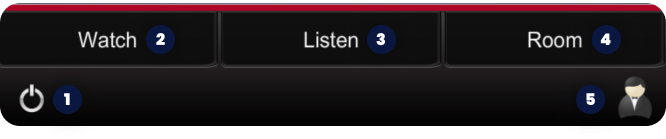
- By touching the On/Off button, you can switch the main menu on and off.
- By touching the “Watch” button, you can select from the designated icons the preferable source for watching that you like.
- By touching the “Listen” button, you can select from the designated icons the preferable source for listening that you like.
- By touching the “Room” button, you can select which system you would like to control such as lighting, air conditioning, windows, curtains and blinds.
- You can call the steward at any time by touching the “steward call” button.
WATCH INTERFACE

By pressing the “Watch” button the following icons appear on the screen as indicated in the photo above:
- Movies - you can select to watch your preferable movie through the movie library.
- Series - you can select to watch your preferable TV series through the series library.
- Blu-Ray - you can insert/play your disc to the blu-ray player of your cabin.
- TV - you can select to watch between satellite and terrestrial TV channels.
- Apple TV - you can stream your phone videos/photos on the TV. For mentioned application the phone should be connected on the Guest Wi-Fi.
LISTEN INTERFACE

By pressing the “Listen” button the following icons appear on the screen as indicated in the photo above:
- Airplay - you can stream your phone music on the TV/cabin speakers. For mentioned application the phone should be connected on the Guest Wi-Fi.
- CD - you can insert/play your CD to the media player of cabin.
- Music Server - you can select to listen to your preferable music/songs through the music library.
- Radio - you can select to listen between satellite and terrestrial radio stations.
- Ships Party - you can listen to the music which is playing by the “piano” or the “DJ” by pressing the respective button.
ROOM INTERFACE

By pressing the “Room” button the following icons appear on the screen as indicated in the photo above:
- Lights - you can control the lights of your cabin through the defined scenarios.
- Blinds - you can raise/lower the curtains and the blinds of your cabin.
- HVAC - you can control the air conditioning temperature of your cabin.
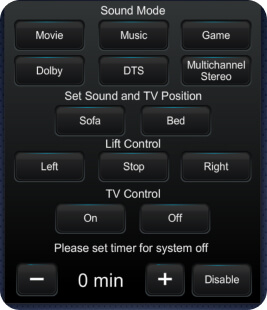
- Settings - you can setup the sound mode and the TV position.
By pressing the “Settings” button you can control the following systems.
- Sound Mode - you can select between the designated types of sound.
- Set Sound and TV position - you can select between the sofa and bed position.
- Lift Control - you can turn the TV lift mechanism to the preferable position.
- TV Control - you can switch on/off the TV.
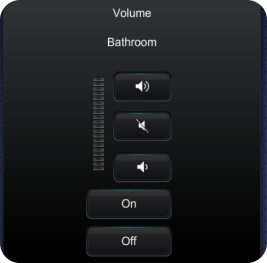
Subzone - you can control the TV and the speaker volume of your bathroom.
By pressing the “Subzone” button,
- You can switch on/off the zone and follow the music or the TV programme which is playing on the main zone, noting that the cabin is the main zone of the room.
- You can raise/lower or mute the volume of the speaker inside the bathroom.
Windows - you can open/close the windows of you cabin.
General Notes:
- Lighting scenarios, windows, curtains and blinds are also easily operated via the wall keypads.
- Bathroom speaker can be also controlled via the bathroom’s wall keypad.